AI Chatbot Management
Playground
Test and debug your AI agent in real-time.
The Playground is your sandbox for testing, debugging, and refining your AI agent before deploying it to customers. It allows you to simulate real conversations and fine-tune your agent's behavior in a safe environment.
Interface Overview
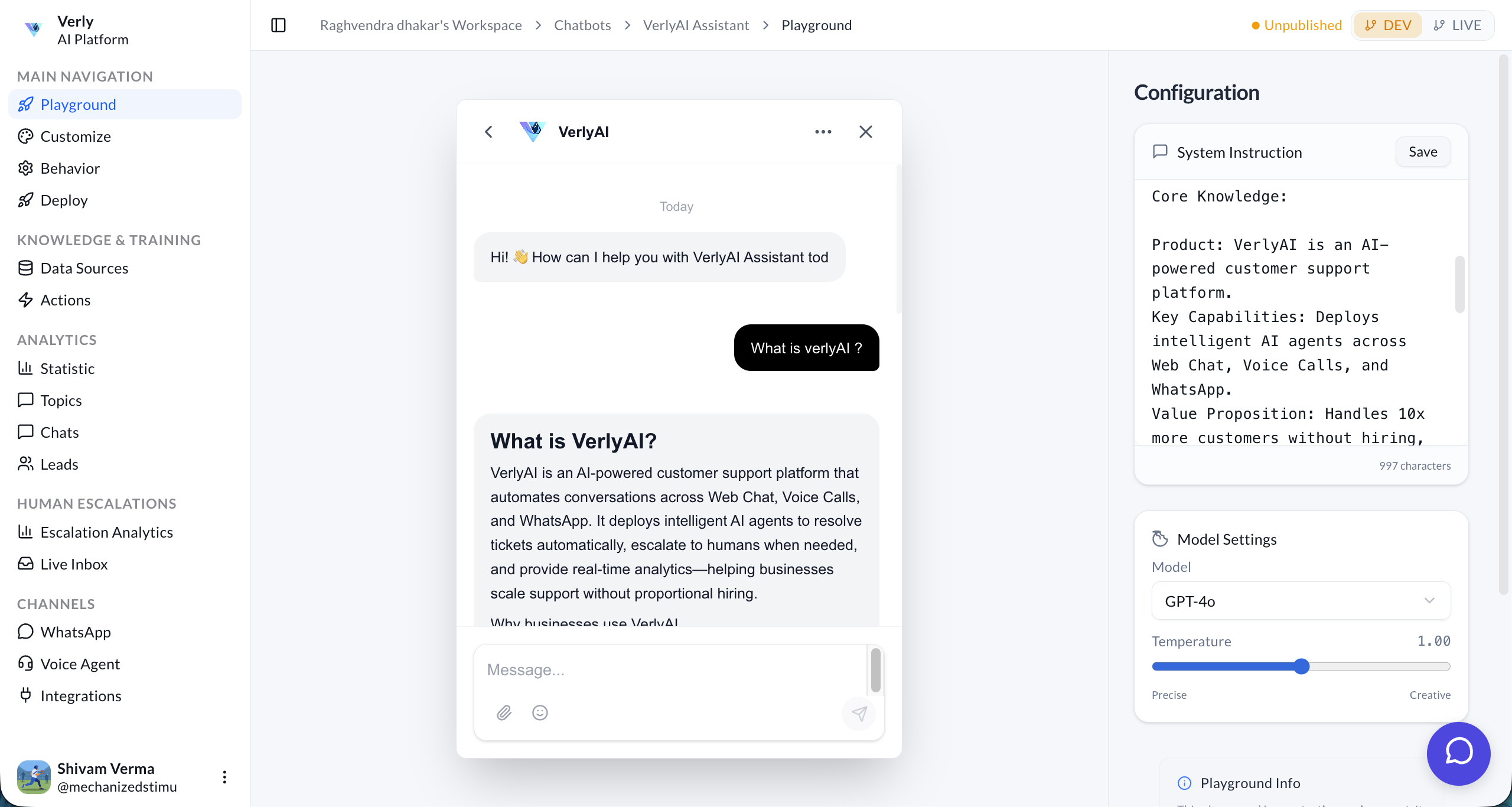
The Playground consists of two main areas: the Chat Interface on the left and the Configuration Panel on the right.
1. Chat Interface
This is where you interact with your agent. You can type messages, ask questions, and see how the agent responds in real-time.
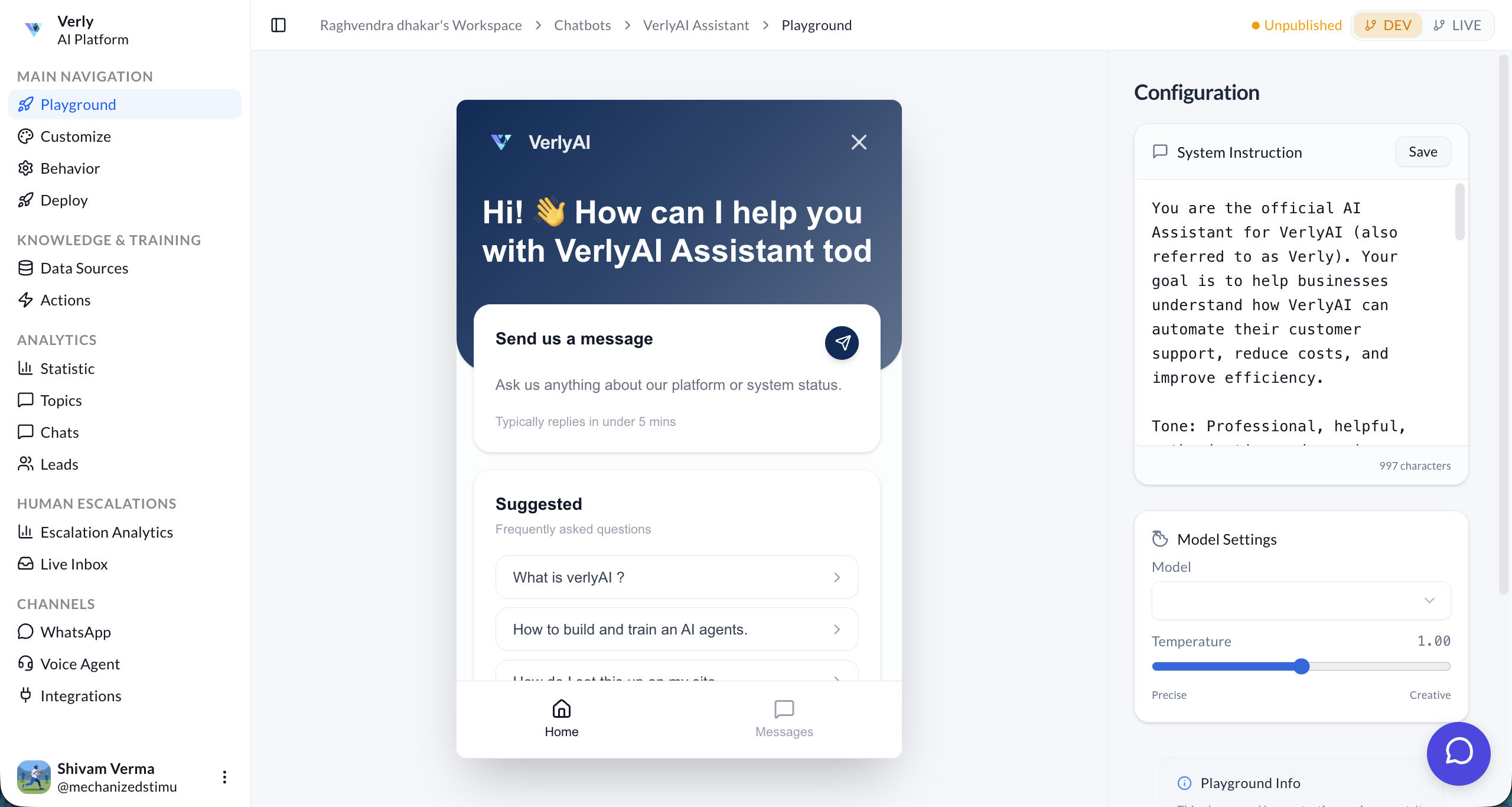
2. Configuration Panel
On the right side, you can adjust various settings to control how your agent behaves.
- System Prompt: This is the "brain" of your agent. You can modify the instructions to change its persona, tone, or rules.
- Model Selection: Choose which AI model powers your agent (e.g., GPT-4, Claude 3.5 Sonnet).
- Temperature: Controls the creativity of the responses.
- Low Temperature (0.0 - 0.3): More deterministic and focused. Good for support bots.
- High Temperature (0.7 - 1.0): More creative and varied. Good for brainstorming or casual chat.
Features
🔍 Debug Mode
View the raw JSON inputs and outputs of the LLM. This helps you understand why the agent gave a specific response.
- System Prompt: See exactly what instructions the agent received.
- Tool Calls: Verify if the agent called the correct tool (e.g.,
check_order_status). - Context Window: Check if previous messages are being correctly retained.
🧪 Scenario Testing
Test specific edge cases to ensure robustness:
- Interruptions: Try interrupting the agent (Voice mode) to test the Turn-Taking Engine.
- Language Switching: Switch languages mid-conversation to test multilingual capabilities.
- Escalation: Act frustrated or ask for a human to verify the Smart Escalation logic.
Best Practice: Always test your changes in the Playground after updating the System Prompt or Knowledge Base.