Channels
Automate customer support and sales on WhatsApp.
Connect your WhatsApp Business number to VerlyAI to automate customer support and sales.
Connection Methods
You can connect your number in two ways:
- Connect with Facebook: The easiest method, using the embedded signup flow.
- Connect Manually: For advanced users who want full control over their Meta App configuration.
Manual Setup Guide
If you prefer to configure your own Meta App, follow these steps to connect manually.
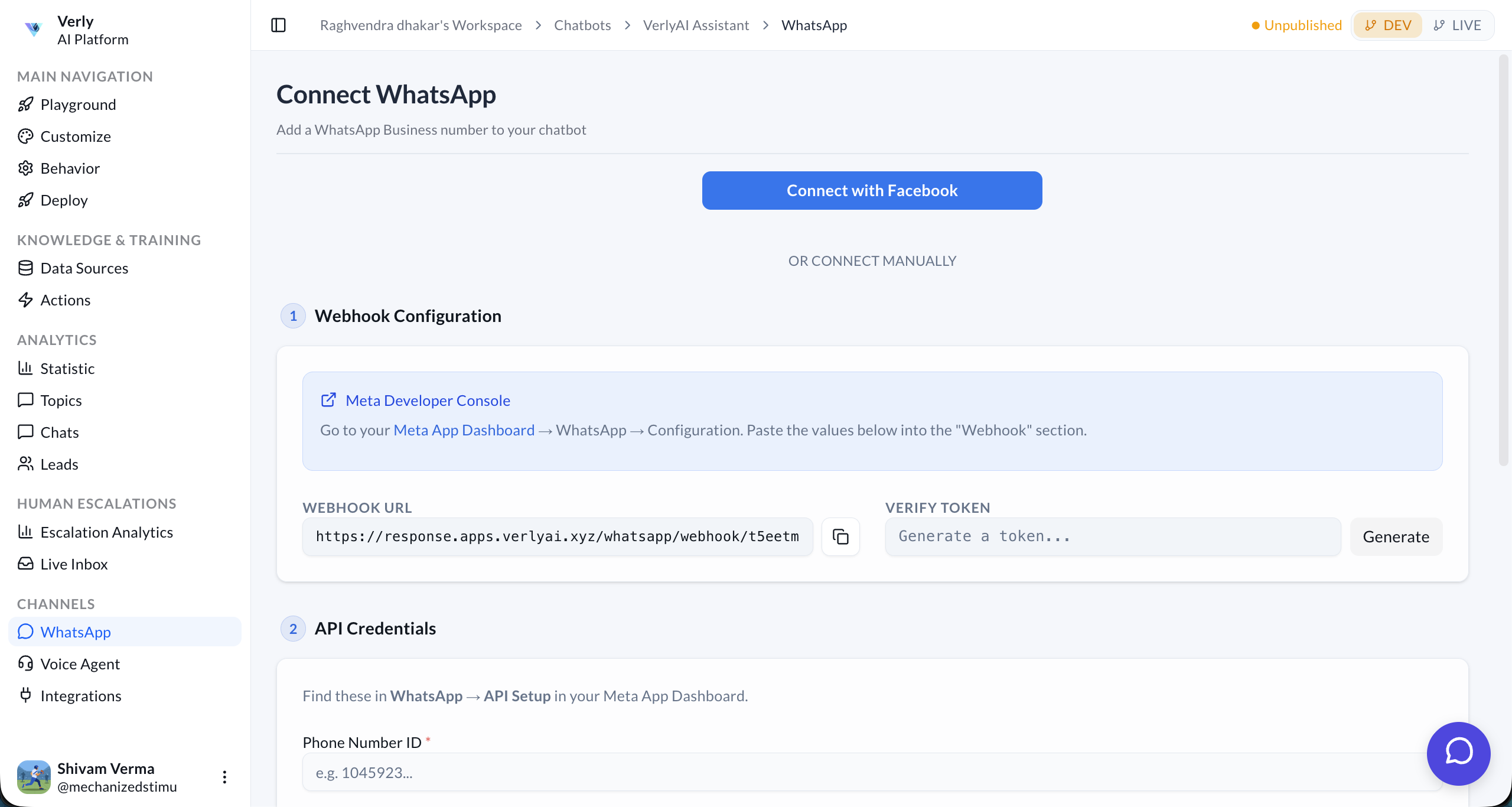
1. Webhook Configuration
First, you need to tell Meta where to send incoming messages.
- Go to your Meta App Dashboard > WhatsApp > Configuration.
- Find the "Webhook" section and click Edit.
- Copy the Webhook URL and Verify Token from your VerlyAI dashboard and paste them into Meta.
2. API Credentials
Next, provide VerlyAI with the credentials to send messages on your behalf.
- Go to WhatsApp > API Setup in your Meta App Dashboard.
- Copy the following values:
- Phone Number ID: The ID of the phone number sending messages.
- Access Token: A System User Token (recommended for production) or Temporary Token (for testing).
- WhatsApp Business Account ID: The ID of your overall business account.
- Enter your Phone Number in E.164 format (e.g.,
+1234567890).
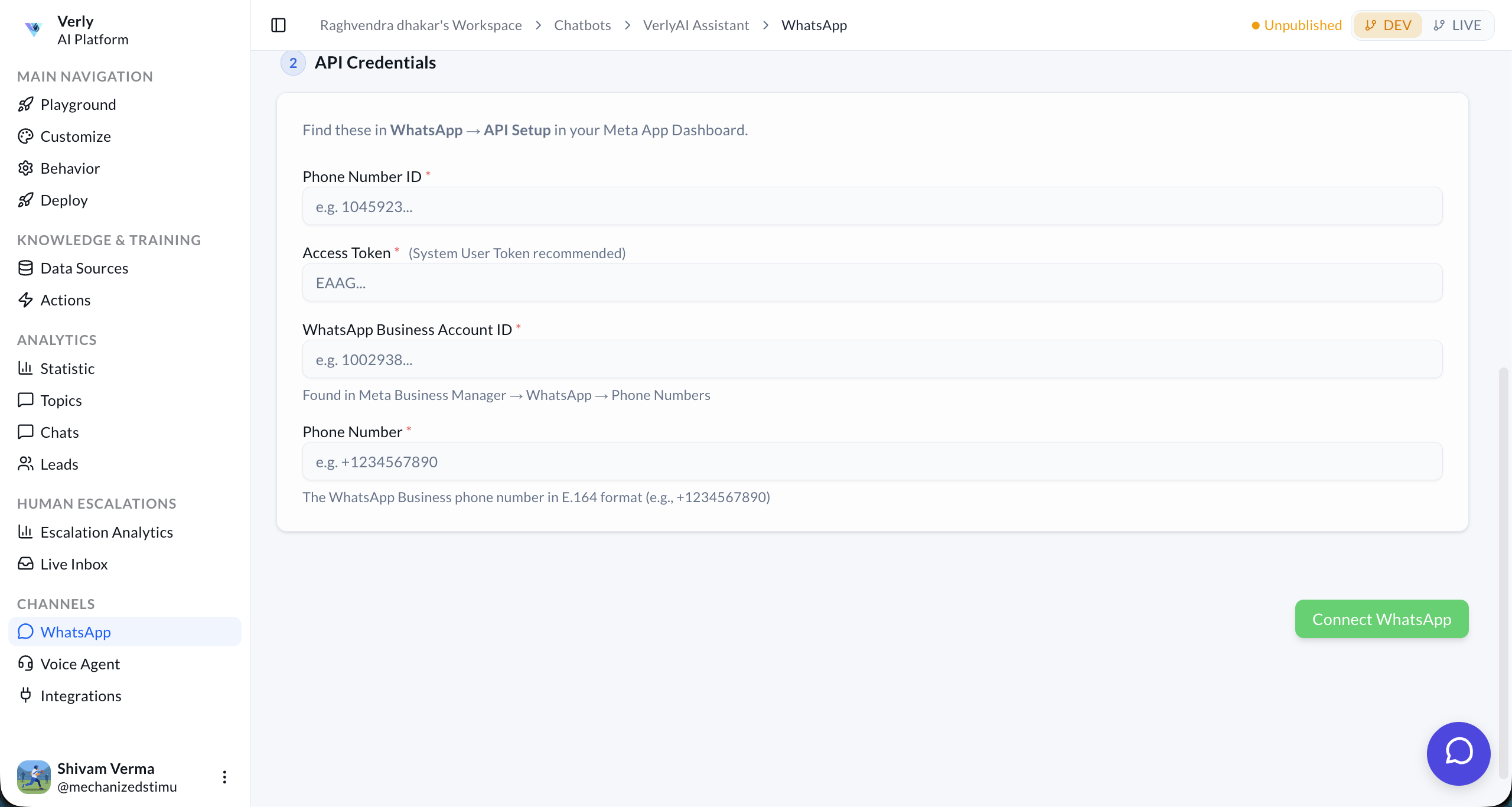
3. Finish Connection
Once all fields are filled, click the Connect WhatsApp button to finalize the integration. Your agent is now ready to reply to messages!