Live Inbox
The Live Inbox is the command center for your support team. When a user requests a human agent or the AI detects a situation that needs human attention, the conversation is routed here instantly.
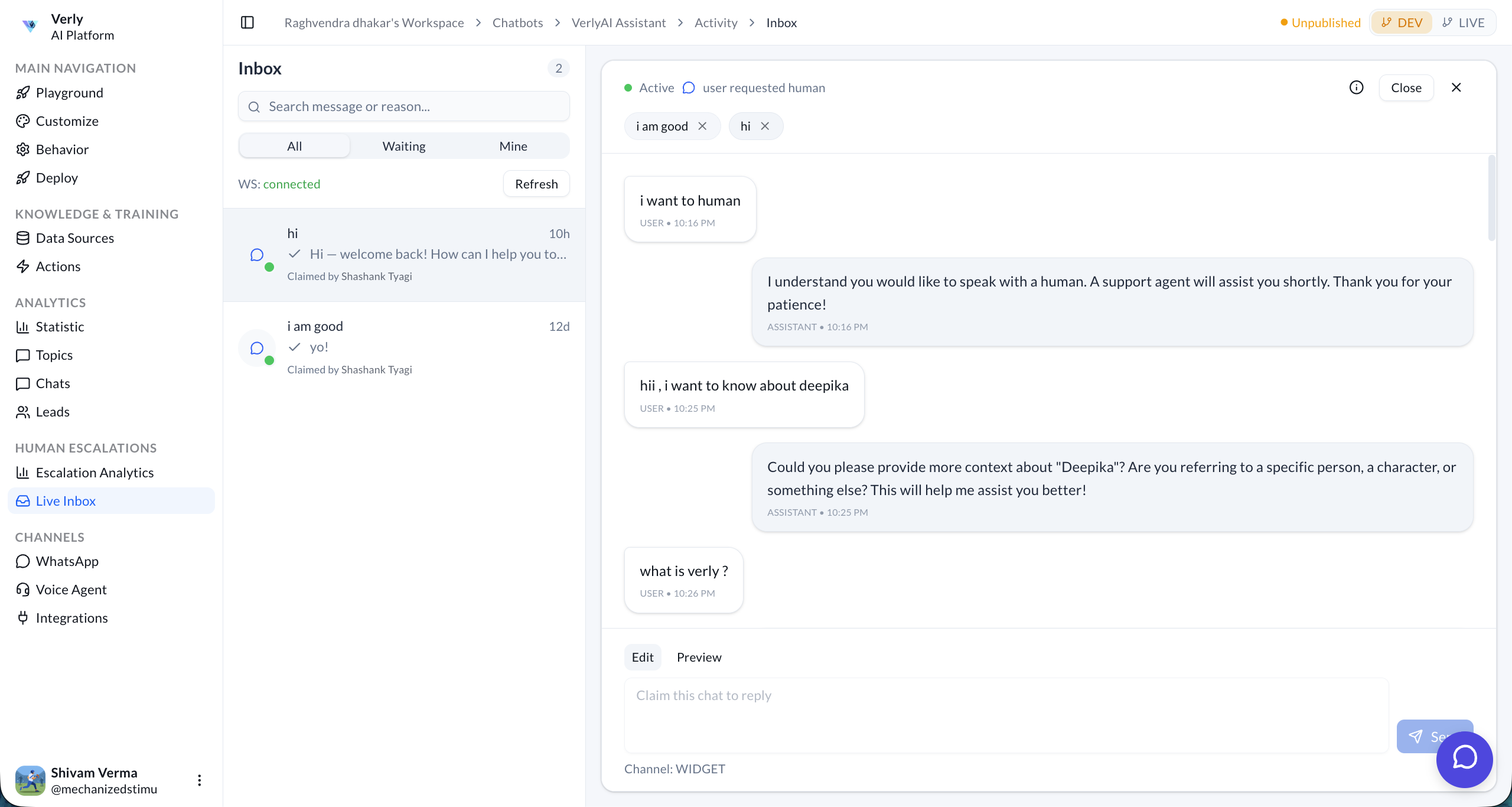
Conversation Queue
The left panel displays all escalated conversations in a real-time feed.
- Search: Find specific conversations by message content or reason for escalation.
- Tabs:
- All — Every conversation across your team.
- Waiting — Conversations that haven't been claimed yet by any agent.
- Mine — Conversations you've personally claimed.
- WS: Connected — A live WebSocket indicator showing that your inbox is receiving real-time updates. Click Refresh to manually sync.
Each conversation card shows:
- Preview: The last message from the conversation.
- Time: How long ago the message was sent.
- Status: Whether the conversation has been claimed (e.g., "Claimed by Shashank Tyagi").
Conversation Detail
Clicking on a conversation opens the full transcript on the right panel. You can see the complete chat history between the user and the AI — so you never have to ask the user to repeat themselves.
Status Bar
At the top of each conversation, you'll see:
- Active indicator — The conversation is ongoing.
- Reason for escalation — A label showing why it was handed off (e.g., "user requested human").
- Applied tags — Tags extracted from the conversation (e.g., "i am good", "hi").
- Close (✕) — Close and resolve the conversation once the issue is resolved.
Replying to a User
At the bottom of the conversation panel, you have a reply composer with two modes:
- Edit — Type and format your response.
- Preview — Preview how your message will look before sending.
Click Claim this chat to reply to take ownership of the conversation. Once claimed, you can type and send messages directly to the user.
- Channel — Shown at the bottom (e.g.,
WIDGET,WA) so you know which platform the user is on.
Key Concepts
Claiming a Conversation
To reply to a conversation, you must first claim it. This prevents multiple agents from responding to the same user simultaneously.
Status Indicators
Each conversation in the list has a colored dot:
- 🟢 Green — The conversation is active and the user is currently online.
- ⚪ Gray — The user is inactive or the conversation has ended.
Real-Time Updates
The inbox uses WebSockets (WS: Connected) to push new messages and escalations instantly — no need to manually refresh the page.